How to Get WiFi Password from QR Code (iPhone, Android & Router Labels)
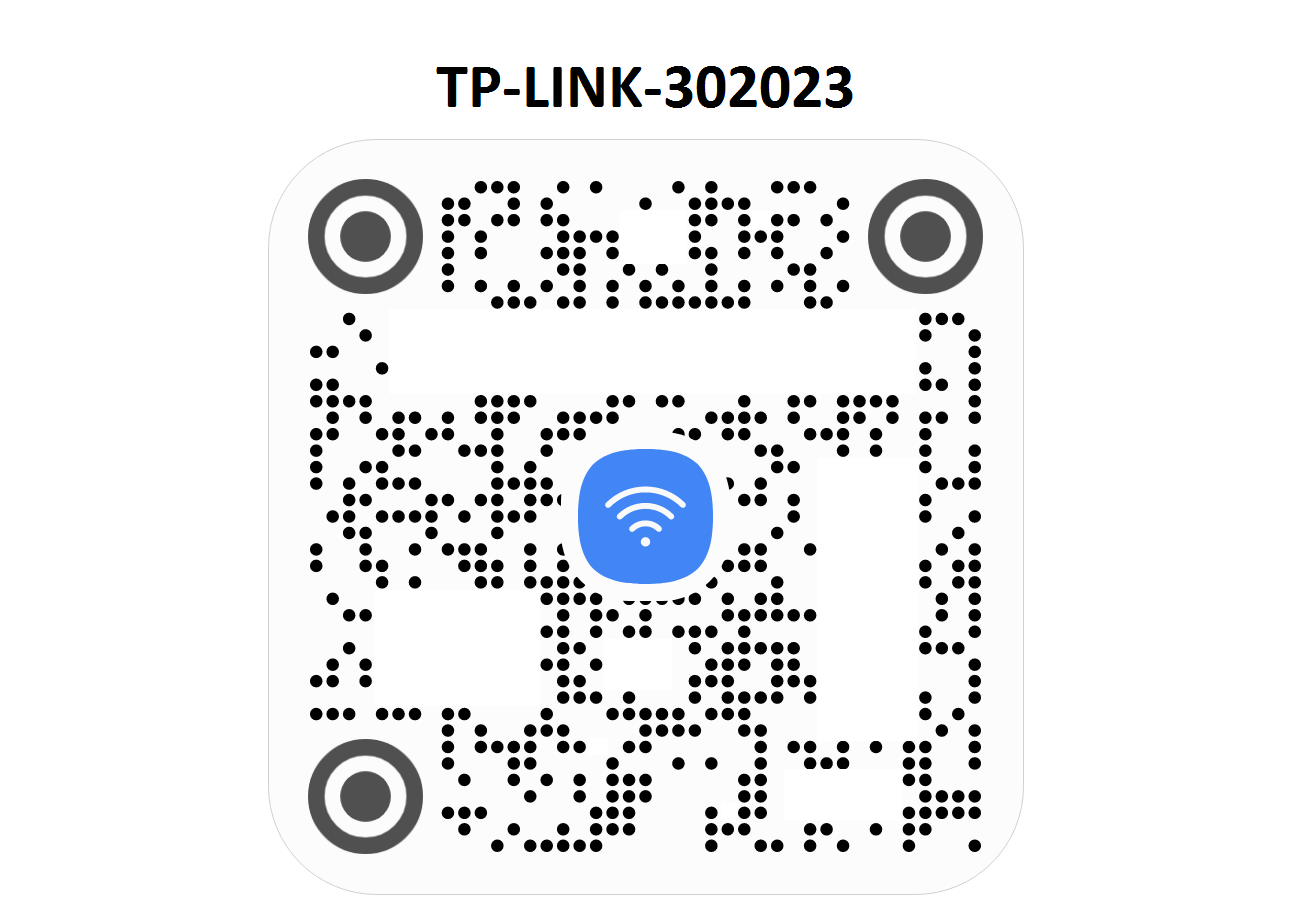
In this post, I'm going to show you exactly how to get a WiFi password from a QR code — on iPhone, Android, and straight from the sticker on your router.
And I'll also show you how to create a WiFi QR code of your own, so guests can connect to your network without you ever having to say the password out loud. Use our free WiFi QR Code Generator for that — it takes 10 seconds.
Let's dive right in.
In this guide:
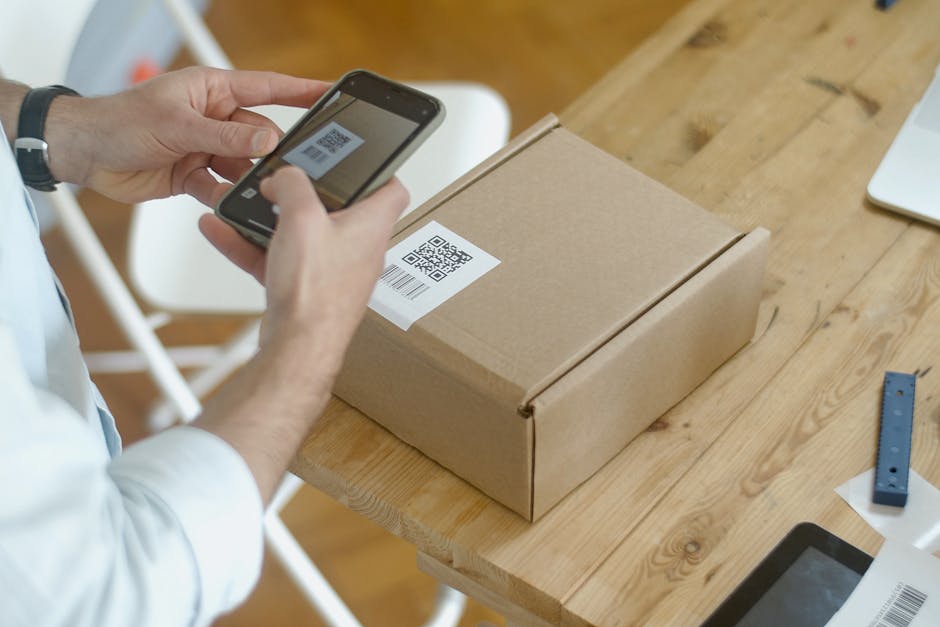
Photo by Kampus Production on Pexels.
What Is a WiFi QR Code?
A WiFi QR code is a special type of QR code that stores your network name (SSID) and password in a format that any modern smartphone can read. When someone scans it, their phone automatically prompts them to join your network — no typing required.
The QR code encodes the credentials in this standardized format: WIFI:T:WPA;S:YourNetworkName;P:YourPassword;;
Your phone's camera or a QR scanner app reads that string and does the rest automatically.
How to Scan a WiFi QR Code on iPhone
Here's the good news: you don't need any app. Your iPhone camera handles it natively from iOS 11 onwards.
- Open the Camera app (not the QR scanner in Control Center — the main camera).
- Point it at the WiFi QR code and hold steady for 1–2 seconds.
- A yellow notification banner appears at the top of the screen.
- Tap the banner. Your iPhone will prompt you to join the network.
- Tap Join. Done.
Tip: If the banner doesn't appear, go to Settings → Camera and make sure "Scan QR Codes" is toggled on.
How to Scan a WiFi QR Code on Android
Android handles this slightly differently depending on your device, but it's just as simple:
- Open your Camera app and point it at the QR code.
- Most Android phones (running Android 9+) will show a notification or pop-up automatically.
- Tap the notification and tap Connect.
If your camera doesn't auto-detect it, use Google Lens — it's the most reliable option on Android. Open Google Lens, point it at the QR code, and it will decode and offer to connect you.
Google Lens is available inside the Google app, Google Photos, and on most Android cameras by tapping the Lens icon. It's free, it's fast, and it's the best choice on any device.
Reading a QR Code from Your Router Label
Many modern routers — especially TP-Link, Netgear, and ISP-provided modems — print a WiFi QR code directly on the device label. This is the QR code that stores the factory default network name and password.
Just follow the iPhone or Android steps above and point your camera at the label on the back or bottom of your router. It works exactly the same way.
If you changed your WiFi password after setup, the label QR code will be outdated. In that case, you'll need to either check your router's admin panel for your current password or use our WiFi QR Code Generator to make a new, updated QR code.
How to Reveal the Actual Password Text from a QR Code
Sometimes you don't just want to connect — you need the actual password string so you can share it or type it manually elsewhere. Here's how to extract it:
- Open Google Lens on any device.
- Point it at the WiFi QR code.
- Google Lens will display the decoded text, which contains your SSID and password in plaintext.
- You can now read, copy, or share the password.
Alternatively, use any QR code scanner app that shows raw decoded content — just search "QR code scanner" in your app store, most free apps show the raw text string after scanning.
How to Create Your Own WiFi QR Code
Here's where it gets even better. You can generate a WiFi QR code for your own network — for free, instantly, and without any app download.
Use our free WiFi QR Code Generator. Here's what it does:
- Type in your WiFi network name and password
- Select your security type (WPA2 for most home routers)
- The QR code generates instantly in your browser
- Download it as a PNG image
- Print it, text it, or display it on screen for guests
Everything runs locally in your browser — your password is never sent to any server. It's completely private and secure.
FAQ: WiFi QR Codes
Is scanning a WiFi QR code safe?
Yes — if the QR code belongs to a network you have permission to use. Scanning a WiFi QR code simply connects you to the encoded network. It cannot install software, access your files, or do anything harmful on its own. The only thing to be cautious about is scanning QR codes from unknown or suspicious sources in public places — only scan codes from networks you trust.
Can I scan a WiFi QR code without downloading an app?
Yes. On iPhone (iOS 11+) and Android (9+), your built-in camera app scans WiFi QR codes automatically. No third-party app needed. Google Lens, which is built into Google Photos and the Google app, also works on any device.
Why isn't my camera scanning the WiFi QR code?
A few common reasons: the QR code is damaged or too small to read clearly, your camera's QR scanning is disabled in settings, you're using an older device with an OS below iOS 11 or Android 9, or you're too close or too far from the code. Try Google Lens as a reliable fallback — it handles most problematic QR codes.
How do I make a QR code for my WiFi so guests can connect easily?
Use our free WiFi QR Code Generator. Enter your network name and password, download the generated QR image, and print it. Stick it on your fridge, frame it by the door, or include it in your Airbnb welcome pack. Guests scan it and connect instantly — no password spelling required.
Does a WiFi QR code expire?
A static WiFi QR code never expires on its own. It becomes invalid only if you change your WiFi password or network name — in that case, simply generate a new QR code. Our generator is free and takes about 10 seconds to use.
Related posts: 200+ Funny WiFi Names · Cat WiFi Names · Italian WiFi Names · Romantic WiFi Names for Couples