How to Change Your WiFi Password — Step by Step Guide (2026)
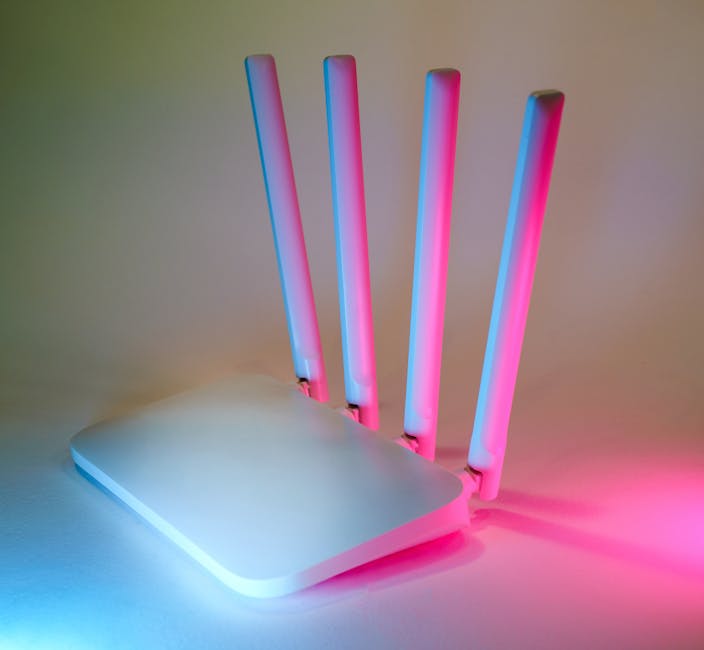
In this post, I'm going to show you exactly how to change your WiFi password — step by step, on any router brand, in under 5 minutes.
Here's the truth: most people have never changed their WiFi password. They are still using the one printed on the label stuck to their router — which is short, often follows a predictable pattern, and in some cases appears in publicly searchable databases. Changing it is one of the single most effective things you can do to secure your home network.
Let's dive right in.
What's inside:

Photo by Jakub Zerdzicki on Pexels.
Before You Start — What You Need
You need three things:
- A device connected to your router — either via WiFi or ethernet cable. Your laptop or phone works fine as long as it is already on the network.
- Your router's admin address — usually
192.168.1.1or192.168.0.1. Type this into your browser address bar (not a search engine). - Your router admin credentials — usually printed on the label on the bottom or back of your router. Look for "Admin password", "Router password", or similar. This is different from your WiFi password.
If you have never logged into your router before, the admin credentials are almost certainly still the factory defaults. Check the router label — it will have them.
Universal Steps — Works on Any Router
These steps work on virtually every home router regardless of brand:
- Open your browser (Chrome, Firefox, Safari — any of them) on a device connected to your network
- Type 192.168.1.1 into the address bar and press Enter. If you see nothing, try 192.168.0.1 instead
- A login screen will appear. Enter your router admin username and password (from the label on your router)
- Once inside, look for a section called Wireless, WiFi Settings, or Wireless Security
- Find the field labelled Password, Passphrase, or Pre-Shared Key
- Delete the old password and type your new one. Use our Password Strength Checker first to make sure it is strong
- Click Save or Apply
- Your router will apply the change. All devices will be disconnected and need to reconnect with the new password
Tip: If you have a dual-band router (2.4GHz and 5GHz), you will see two separate wireless sections. Change the password on both to the same new password — it makes life simpler.
TP-Link Routers
TP-Link is one of the most common router brands globally. The admin panel looks clean and is easy to navigate.
- Open a browser and go to
192.168.0.1ortplinkwifi.net - Log in — default credentials are usually admin / admin (check your label)
- Go to Wireless → Wireless Security
- Find the Wireless Password field under WPA/WPA2 Personal
- Enter your new password and click Save
- Click Reboot if prompted, or changes apply automatically
On newer TP-Link routers with the Tether app: open the app → tap your router → go to Wireless → change the password there. Takes 30 seconds.
Netgear Routers
- Go to
192.168.1.1orrouterlogin.net - Log in — default is usually admin / password
- Go to Wireless → Security
- Find Passphrase under WPA2-PSK (AES)
- Replace the old passphrase with your new one
- Click Apply
Asus Routers
- Go to
192.168.1.1orrouter.asus.com - Log in with your admin credentials (label on router)
- Click Wireless in the left menu
- Click the General tab
- Find WPA Pre-Shared Key — this is your WiFi password field
- Enter your new password and click Apply
BT, Sky, and Virgin Media (UK)
BT Smart Hub: Go to 192.168.1.254 → click Advanced Settings → Wireless → Security → change the password → Save.
Sky Q Hub: Go to 192.168.0.1 → log in with the admin password from your hub label → go to Security → change the WiFi password → Save.
Virgin Media Hub: Go to 192.168.0.1 → log in → go to Advanced Settings → Wireless → Security → change the password → Apply.
After Changing — What to Do Next
Once your new password is saved, every device on your network will be disconnected. Here is the quick checklist:
- Reconnect your devices — phone, tablets, laptops, smart TVs, streaming sticks. Go to WiFi settings on each and enter the new password
- Update smart home devices — thermostats, smart speakers, security cameras, doorbells all need the new password too. Check each app
- Generate a new QR code — use our free WiFi QR Code Generator to create a printable QR code with the new credentials. Stick it on the fridge so guests can connect without asking
- Update saved passwords — update the password in your password manager if you use one
- Check your router name while you are in there — see our best WiFi router names for inspiration
FAQ: Changing Your WiFi Password
How often should I change my WiFi password?
At minimum: whenever you suspect it has been compromised, when you have guests staying for extended periods, when an ex-partner or former flatmate knew it, and when moving into a new home (the previous occupants' password might still be saved on someone's device). For high-security households, every 6 to 12 months is a reasonable cadence. For most people, once a year is fine as long as the password is strong to begin with.
What happens to my devices when I change the WiFi password?
All currently connected devices will be immediately disconnected. They will not reconnect automatically — you need to go into the WiFi settings on each device and enter the new password. This is actually a feature when you want to kick old devices or unwanted users off your network.
What if I forgot my router admin password?
If you have never changed the admin password, check the label on your router — the factory default is usually printed there. If you changed it and forgot it, you will need to factory reset your router by holding the reset button (usually a small pinhole on the back) for 10-30 seconds. This wipes all settings and restores factory defaults, including the admin credentials and the WiFi password.
What is the strongest type of WiFi password security?
WPA3 is the most secure WiFi encryption standard currently available, followed by WPA2-AES. Avoid WEP and WPA (original) — these are outdated and can be cracked quickly. If your router supports WPA3, enable it in your wireless security settings. Most routers from 2019 onwards support it. Check our WiFi Password Strength Checker to test the strength of your new password once you have chosen one.
Can I change my WiFi password from my phone?
Yes — open your phone's browser, navigate to your router admin address (192.168.1.1 or 192.168.0.1), log in, and follow the same steps. Many modern routers also have dedicated apps (TP-Link Tether, Netgear Orbi, Asus Router) that make the process even simpler from a phone.
Related posts