WiFi Missing from Network and Internet Settings — Full Fix Guide (2026)
In this post, I'm going to show you exactly how to fix the WiFi missing from Network and Internet settings problem on Windows 10 and Windows 11.
Here's the truth: this is one of those infuriating issues where your laptop clearly has a WiFi adapter, but Windows decides to pretend it doesn't exist. The WiFi option vanishes from the taskbar. The toggle is gone from Settings. Even the troubleshooter gives up.
In fact, these are the exact steps I got from an expert that actually solve it — not the generic "restart your router" advice that fixes nothing.
Let's dive right in.
In this guide:
- Why does WiFi disappear from Network and Internet settings?
- Fix 1: Turn on Network Discovery (most common fix)
- Fix 2: Enable the WLAN AutoConfig service
- Fix 3: Update or roll back your WiFi driver
- Fix 4: Run the network adapter troubleshooter
- Fix 5: Reset TCP/IP stack via Command Prompt
- Fix 6: Check if WiFi adapter is disabled in Device Manager
- FAQ
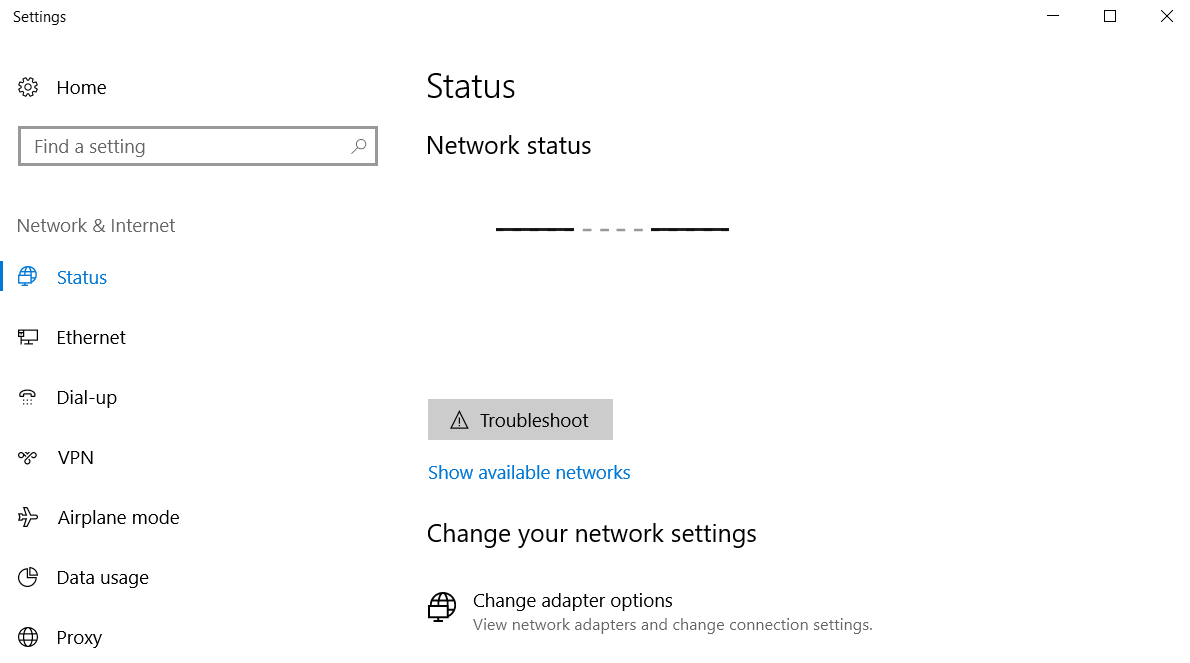
Why Does WiFi Disappear from Network and Internet Settings?
The most common trigger is a recent Windows update, driver installation, or software change that disables the Network Discovery service or corrupts the WiFi adapter configuration. When this happens:
- The WiFi icon disappears from the system tray
- The WiFi toggle is missing from Settings > Network & Internet
- No wireless networks appear in the available networks list
- The network troubleshooter reports "Problem with wireless adapter or access point" but cannot fix it
Quick tip: If you can still connect to previously joined networks automatically but can't see new ones, you likely have a Network Discovery issue. If you can't connect to anything at all, start with Fix 3 (driver check) or Fix 6 (Device Manager).
Fix 1: Turn On Network Discovery (Most Common Fix)
This is the fix that works for the majority of people. A Windows update or software install can disable Network Discovery without warning, which makes WiFi completely vanish from the interface.
- Press Windows key + R, type
control panel, press Enter - Go to Network and Internet
- Click Network and Sharing Center
- Click Change advanced sharing settings (left sidebar)
- Under Private (or Current Profile), find Network discovery
- Select Turn on network discovery
- Click Save changes
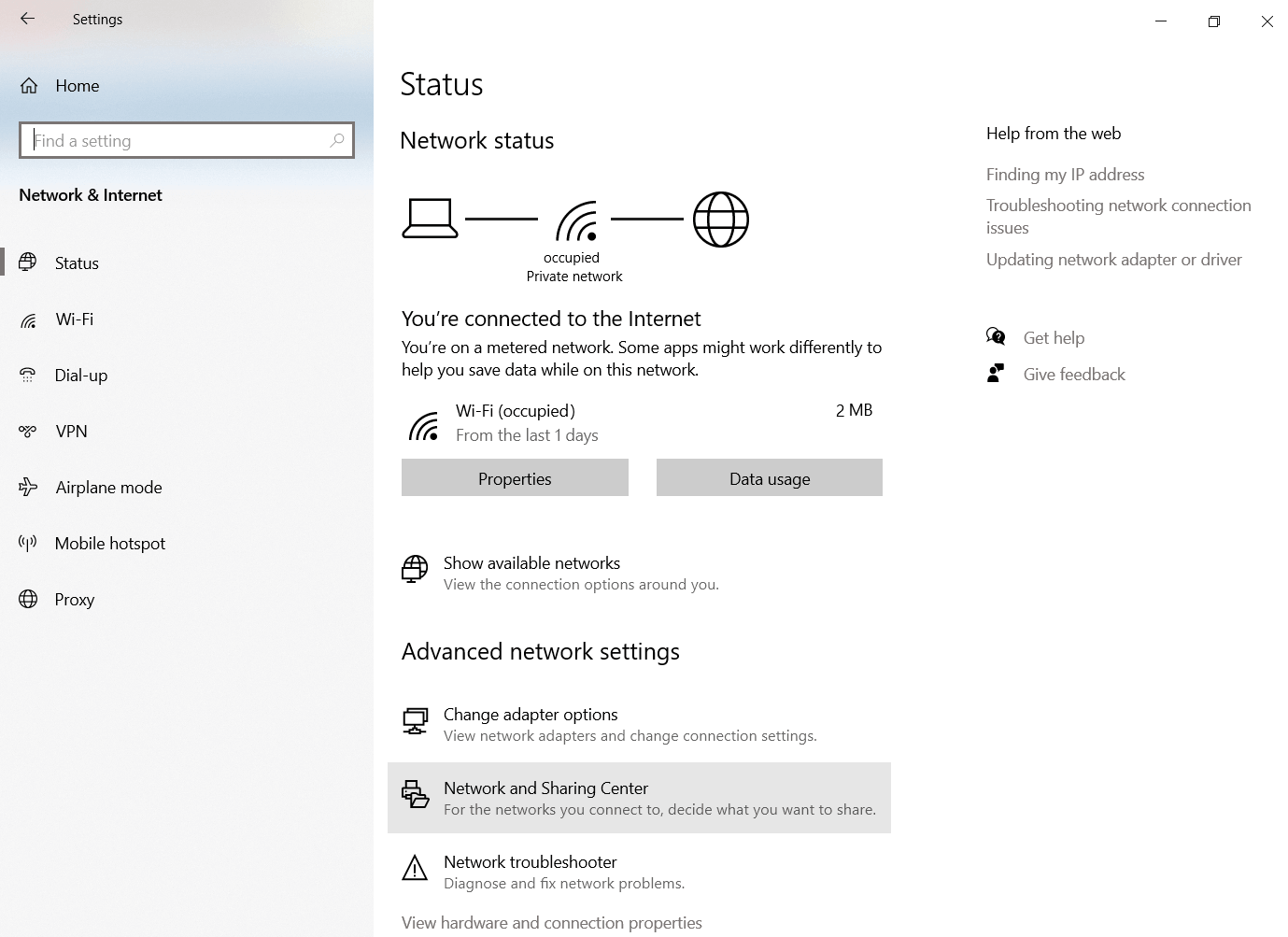
Now restart Windows. Go to Settings > Network & Internet > Status — if the WiFi toggle is back, you are done.
Fix 2: Enable the WLAN AutoConfig Service
The WLAN AutoConfig service manages wireless connections in Windows. If it gets disabled — which can happen after certain updates — WiFi vanishes entirely.
- Press Windows key + R, type
services.msc, press Enter - Scroll down and find WLAN AutoConfig
- Right-click it and select Properties
- Set Startup type to Automatic
- Click Start if the service is not already running
- Click OK and restart your PC
If WLAN AutoConfig was stopped, this fix alone often brings WiFi back immediately after the restart.
Fix 3: Update or Roll Back Your WiFi Driver
A bad driver update is another very common culprit. Windows Update sometimes pushes a generic driver that is incompatible with your specific WiFi adapter.
- Press Windows key + X and select Device Manager
- Expand Network Adapters
- Look for your WiFi adapter (usually "Intel Wireless", "Realtek WiFi", or similar)
- Right-click it and choose Update driver → Search automatically for drivers
- If that does not help, right-click again → Properties → Driver tab → Roll Back Driver
If you see a yellow exclamation mark on the adapter, that confirms a driver problem. Download the correct driver directly from your laptop manufacturer's website (Dell, HP, Lenovo, Asus, etc.) and install it manually.
Fix 4: Run the Network Adapter Troubleshooter
Windows has a dedicated network adapter troubleshooter that is more thorough than the generic one. It sometimes catches things the standard troubleshooter misses.
- Go to Settings > System > Troubleshoot (Windows 11) or Settings > Update & Security > Troubleshoot (Windows 10)
- Click Other troubleshooters (Win 11) or Additional troubleshooters (Win 10)
- Find Network Adapter and click Run
- When prompted, select your WiFi adapter specifically (not "All network adapters")
- Apply any fixes it suggests and restart
Fix 5: Reset TCP/IP Stack via Command Prompt
If the above fixes have not worked, corrupted network stack settings may be causing the issue. This fix resets Windows networking to defaults — it is safe and reversible.
- Press Windows key + X and select Windows Terminal (Admin) or Command Prompt (Admin)
- Run these commands one by one, pressing Enter after each:
netsh winsock reset
netsh int ip reset
ipconfig /release
ipconfig /flushdns
ipconfig /renew
Restart your PC after all commands complete. This clears corrupted network configuration that Windows Update sometimes leaves behind.
Fix 6: Check if WiFi Adapter Is Disabled in Device Manager
This sounds obvious but is surprisingly easy to miss — especially after a Windows update that sometimes disables hardware.
- Press Windows key + X → Device Manager
- Expand Network Adapters
- If your WiFi adapter has a small downward arrow icon on it, it is disabled
- Right-click it → Enable device
- Restart your PC
Also check under View > Show hidden devices — sometimes the adapter is hidden rather than simply disabled.
FAQ: WiFi Missing from Network Settings
Why did my WiFi disappear after a Windows update?
Windows updates occasionally disable the Network Discovery service, push an incompatible WiFi driver, or reset network adapter settings. All of these can cause the WiFi option to vanish from Settings. Fix 1 (Network Discovery) and Fix 3 (driver update/rollback) resolve this in the vast majority of cases.
My WiFi adapter is not showing in Device Manager at all — what now?
If the adapter does not appear even under hidden devices, either the hardware is physically disconnected (common on laptops where the WiFi card can come loose) or the adapter has completely failed. Try reseating the WiFi card if comfortable opening the laptop, or test with an external USB WiFi adapter to confirm whether it is a hardware or software issue.
The WLAN AutoConfig service is running but WiFi is still missing — what next?
Try Fix 5 (TCP/IP reset) followed by a full shutdown and cold boot (not restart — actually power off, wait 10 seconds, then power on). Some network stack corruptions only clear on a full power cycle. If still missing after that, download and reinstall the WiFi driver directly from your manufacturer's website.
Can a VPN cause WiFi to disappear from Settings?
In rare cases, yes. Some VPN clients install virtual network adapters that can conflict with Windows networking. If the problem started after installing a VPN, try uninstalling it temporarily, running the TCP/IP reset (Fix 5), and rebooting to see if WiFi returns.
Does this fix work on Windows 11?
Yes — all six fixes work on both Windows 10 and Windows 11. The menu paths are slightly different (Settings layout changed in Windows 11) but the underlying services and commands are identical.
Once your WiFi is back up: if you want to make connecting guests easier, check out our free WiFi QR Code Generator — generate a scannable QR code for your network in 10 seconds. And if you want to rename your network while you're at it, browse our 200+ funny WiFi names or best WiFi router names for inspiration.
Related posts